
📝 Quick summary: A free online whiteboard lets you sketch ideas, add sticky notes and plan together from any browser. This list covers 10 tools you can start using without paying, with honest notes on what each one does well.
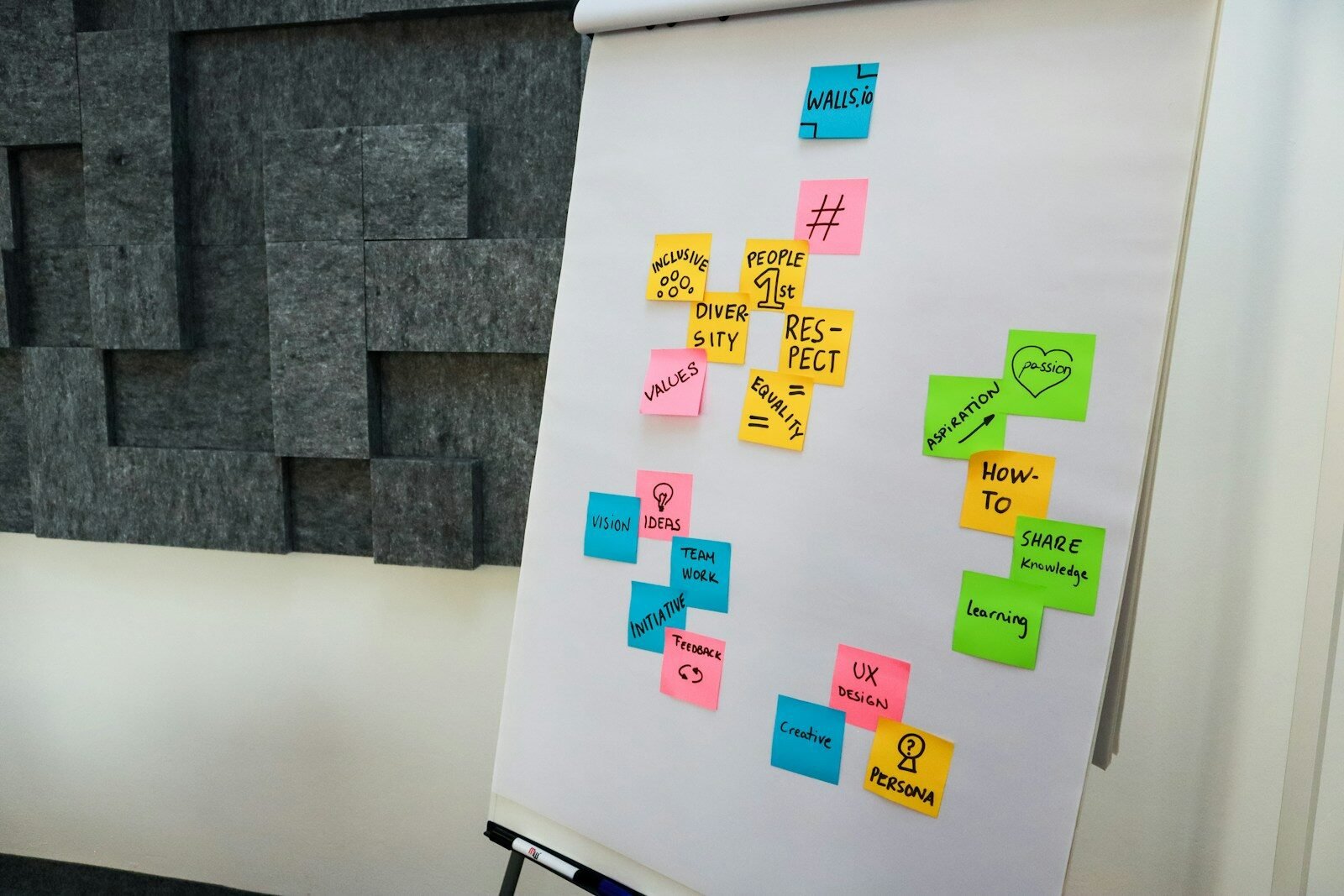
Not every idea fits in a chat message or a long document. Sometimes you just need a big blank space to draw, move notes around and think out loud. Free plans change often, so always check each official site for the latest limits before you commit your team.
🔍 What to Look For in a Free Online Whiteboard
- ⏱️ Easy start. You should be able to open a board and draw within a minute.
- 👥 Live teamwork. Look for real-time editing so everyone can add ideas together.
- 🧩 Templates. Ready-made layouts for brainstorming, planning and lessons save a lot of time.
- 📦 Free plan limits. Many tools cap the number of editable boards, so read the fine print.
- 📱 Device support. A tool that also works on tablets and phones is handy for classrooms.
📊 Quick Comparison Table
| Tool | Free Access | Best For |
|---|---|---|
| Miro | Free plan with 3 editable boards | Team brainstorming |
| FigJam | Part of Figma’s free plan | Design teams |
| Excalidraw | Free to use | Hand-drawn diagrams |
| Microsoft Whiteboard | Included with Microsoft 365; free for education | Meetings and classrooms |
| Canva Whiteboards | Free to start | Visual, colorful boards |
| tldraw | Free, no signup required | Quick sketches |
| Mural | Free plan with 3 editable murals | Workshops |
| Conceptboard | Free plan with 3 active boards | Small teams |
| Ziteboard | Free option available | Online tutoring |
| Lucidspark | Free option available | Structured planning |
🏆 The 10 Free Online Whiteboard Tools
1️⃣ Miro
Miro is one of the best known whiteboards for teams. You get an endless canvas where you can add sticky notes, shapes, arrows, images and text. It feels natural for brainstorming, mapping a project or running a retro with your team.
The free plan is generous on people. Miro says you can have unlimited team members, and a library of more than 7,000 templates is available. The catch is that only your three most recent boards stay editable, so plan which boards you really need.
| 💰 Free plan | Free plan with 3 editable boards, unlimited team members and 7,000+ templates |
| 🎯 Best for | Team brainstorming and planning |
| 💻 Works on | Web, desktop and mobile |
| 👤 Account | Free sign-up needed |
- Huge template library
- Unlimited team members
- Works well for large boards
- Only 3 boards stay editable
- Many features can feel busy at first
💡 Pro tip: Start from a template, then delete what you do not need. It is faster than a blank board.
2️⃣ FigJam
FigJam is the whiteboard from the makers of Figma. It is built for quick, friendly teamwork, with sticky notes, stamps, voting and simple shapes that anyone can pick up. If your team already uses Figma, it fits in neatly.
Figma offers a free plan for individuals, and FigJam sits inside the same family of tools. The exact FigJam limits on free accounts can change, so check the official site for current limits before you invite a big group. For small brainstorming sessions it is often more than enough.
| 💰 Free plan | Figma has a free plan; check the official site for current FigJam limits |
| 🎯 Best for | Design and product teams |
| 💻 Works on | Web browser |
| 👤 Account | Free Figma account |
- Playful and easy to use
- Great for workshops
- Links well with Figma files
- Free limits can change
- Less useful if you never use Figma
💡 Pro tip: Use the voting stickers to pick the best idea in minutes.
3️⃣ Excalidraw
Excalidraw is a simple whiteboard that draws everything in a hand-drawn style. Boxes and arrows look like quick sketches, which makes diagrams feel relaxed and easy to read. It opens fast and does not overwhelm you with menus.
The site describes itself as a free, collaborative whiteboard. That makes it a nice pick for flow charts, wireframes and system sketches that you share with a teammate. It is light on features compared with bigger tools, and that is exactly why many people like it.
| 💰 Free plan | Free to use; check the official site for current limits |
| 🎯 Best for | Hand-drawn diagrams and sketches |
| 💻 Works on | Web browser |
| 👤 Account | Check the official site for account details |
- Clean and fast
- Charming sketch look
- Collaboration built in
- Fewer templates than big tools
- Not made for long workshops
💡 Pro tip: Use it for rough ideas first. The sketchy style keeps people from over-polishing.
4️⃣ Microsoft Whiteboard
Microsoft Whiteboard is a handy choice if your school or office already runs on Microsoft 365. You can ink, add sticky notes, shapes and text, and share a board inside Microsoft Teams meetings. The board stays available in the meeting chat afterward.
Microsoft says the app is included with Microsoft 365, and that it has always been free for students and education professionals through the Microsoft 365 A1 offer. It also lists more than 60 free templates. Check the official site to see if your own account type can use it.
| 💰 Free plan | Included with Microsoft 365; free for students and education professionals (A1); 60+ free templates |
| 🎯 Best for | Teams meetings and classrooms |
| 💻 Works on | Windows 11, iOS, Android, web and Teams |
| 👤 Account | Microsoft 365 account |
- Works inside Teams
- Good for pen and touch
- Free templates
- Tied to Microsoft accounts
- Less handy outside that world
💡 Pro tip: Use read-only mode in meetings so people can watch without moving things around.
5️⃣ Canva Whiteboards
Canva Whiteboards brings the look and feel of Canva to group brainstorming. If you already design posters or slides there, the tools will feel familiar. You can mix text, images, shapes and sticky notes on one big canvas.
Canva presents its whiteboard as a free online whiteboard you can open from your Canva account. It is a good fit when you want a board that also looks nice for sharing or presenting. Free limits can change, so check the official site for current details.
| 💰 Free plan | Free to use; check the official site for current limits |
| 🎯 Best for | Visual, colorful boards |
| 💻 Works on | Web and Canva apps |
| 👤 Account | Free Canva account |
- Familiar Canva design tools
- Looks polished
- Easy for beginners
- Account required
- Some assets may need a paid plan
💡 Pro tip: Drop in your brand colors first so the whole board looks consistent.
6️⃣ tldraw
tldraw is a fast, no-fuss whiteboard that runs in your browser. You open the page and start drawing right away. There are simple shapes, arrows, text and a pen, so there is little to learn.
The site calls it a free and instant virtual whiteboard with online collaboration, and says no signup is required. It works on phones, tablets and computers, and its keywords even mention classroom use. That makes it great for a quick sketch during a call or a lesson.
| 💰 Free plan | Free to use; no signup required |
| 🎯 Best for | Quick sketches and classroom demos |
| 💻 Works on | Phones, tablets and computers |
| 👤 Account | None needed to start |
- Instant start
- Simple and clean
- Real-time sharing
- Fewer templates
- Not built for big workshops
💡 Pro tip: Share the board link in a meeting chat so everyone can draw at once.
7️⃣ Mural
Mural is built for workshops and guided team sessions. It offers sticky notes, frames, voting and facilitation tools that help a group stay on track. Many teams use it for planning days and design sprints.
Mural lists a free plan with unlimited murals, though only three can be editable at a time. It also allows unlimited members, and unlimited visitors can join with view-only rights. The free plan includes one workspace and the visual collaboration tools.
| 💰 Free plan | Unlimited murals (3 editable at a time), unlimited members, view-only visitors, one workspace |
| 🎯 Best for | Workshops and facilitated sessions |
| 💻 Works on | Web browser |
| 👤 Account | Free sign-up needed |
- Strong facilitation tools
- Unlimited members
- Free view-only guests
- Only 3 murals editable
- May be too much for simple sketches
💡 Pro tip: Invite stakeholders as view-only visitors so they can follow along at no cost.
8️⃣ Conceptboard
Conceptboard is a visual collaboration board for feedback, planning and brainstorming. You can place notes, files and drawings on one board and talk about them with your team. It is a calm tool that does not try to do everything.
Its pricing page lists a free plan with three active boards, 100 objects per board, 250 MB of total storage and a 10 MB limit per upload. Those limits are clear, so it suits small teams or personal projects. Bigger groups will likely hit the object cap fast.
| 💰 Free plan | 3 active boards, 100 objects per board, 250 MB storage, 10 MB per upload |
| 🎯 Best for | Small teams and feedback rounds |
| 💻 Works on | Web browser |
| 👤 Account | Free sign-up needed |
- Clear free plan limits
- Good for feedback
- Simple layout
- Only 100 objects per board
- Small storage allowance
💡 Pro tip: Keep one board per project so you do not reach the object limit too soon.
9️⃣ Ziteboard
Ziteboard is a whiteboard made with teaching in mind. It keeps things simple, so a tutor and a student can sketch, write and explain ideas together. The interface stays out of the way, which helps in a live lesson.
The official site describes it as a simple, free brainstorming and tutoring tool for education, and mentions a free whiteboard online. Students can join video calls with free accounts. The free plan limits are not clearly stated on the home page, so check the official site for current limits.
| 💰 Free plan | Free option available; check the official site for current limits |
| 🎯 Best for | Online tutoring and lessons |
| 💻 Works on | Web browser, with a Chrome extension |
| 👤 Account | Free account for students |
- Made for teaching
- Simple to learn
- Video calls for students
- Free limits not clearly listed
- Less suited to big team workshops
💡 Pro tip: Test a short session with a friend before your first real lesson.
🔟 Lucidspark
Lucidspark is the whiteboard from Lucid, the company behind Lucidchart. It focuses on turning loose ideas into something organized, with sticky notes, drawing tools, voting and timers. It works well when a brainstorm needs to lead to a clear plan.
The official site invites you to start free and lists Individual, Team and Enterprise plans. The page does not spell out the free limits, so free to use; check the official site for current limits before you rely on it. It is worth a try if you like structured sessions.
| 💰 Free plan | Free option available; check the official site for current limits |
| 🎯 Best for | Structured planning sessions |
| 💻 Works on | Web browser |
| 👤 Account | Free sign-up needed |
- Good for turning ideas into plans
- Voting and timers
- Clean interface
- Free limits are not listed on the page
- Sign-up needed
💡 Pro tip: Use the timer feature to keep brainstorming rounds short and focused.
🚀 Tips for Getting the Most From a Free Online Whiteboard
| Tip | Why It Helps |
|---|---|
| Start with a template | You skip the blank-page stress and finish faster. |
| Keep boards tidy | Free plans often limit editable boards or objects. |
| Set a time limit | Short rounds keep people focused and creative. |
| Share a view-only link | Others can follow along without changing anything. |
| Export a copy | You keep your work safe if a plan changes. |
Want more ways to work together? Read our guide to free remote collaboration tools and these project management tools with Kanban boards. You can also see how Microsoft explains its own whiteboard on the official Microsoft Whiteboard page.
❓ Frequently Asked Questions
What is a free online whiteboard?
It is a digital canvas in your browser where you can draw, write and add notes. Many let several people edit at the same time.
Which free online whiteboard is best for beginners?
tldraw and Excalidraw are very simple to start with. Miro and Canva are also friendly if you want templates.
Do I need to create an account?
It depends on the tool. tldraw says no signup is required, while Miro, Mural and Conceptboard ask you to sign up.
Which tool is best for teachers?
Microsoft Whiteboard is free for students and education professionals through the A1 offer. Ziteboard is also made with tutoring in mind.
Can many people work on one board at once?
Yes, most tools here support real-time teamwork. Check each site for how many people can edit on a free plan.
What limits do free plans have?
Miro and Mural keep three boards editable at a time. Conceptboard limits boards, objects and storage.
Is Google Jamboard still available?
No. Google shut it down, so pick one of the tools in this list instead.
Can I use these tools on a tablet or phone?
Many can. tldraw says it runs on phones, tablets and computers, and Microsoft Whiteboard has iOS and Android apps.
Are templates included for free?
Often yes. Miro lists more than 7,000 templates and Microsoft Whiteboard lists more than 60 free templates.
Which option is good for design teams?
FigJam is a natural choice for teams that already use Figma, and Canva suits visual projects.
Can I keep my work if I stop using a tool?
Check the export options in your tool. Saving a copy of important boards is a smart habit.
Will these free plans stay the same?
Not always. Companies change their plans, so check the official site for current limits.