Author: admin

  • 10 Best Practices for Optimizing Blog Images for SEO

    When it comes to improving your blog’s visibility on search engines, optimizing blog images for SEO is often overlooked. Images can significantly impact your site’s performance, from loading speed to user engagement, and ultimately your search engine ranking. In this comprehensive guide, we will delve into the best practices for optimizing your blog images for SEO, ensuring that your visuals contribute positively to your overall SEO strategy.

    Why Optimizing Blog Images for SEO is Important

    Optimizing images is crucial because it enhances the user experience and improves your blog’s SEO performance. Here’s why it’s essential:

    • Improved Loading Speed: Optimized images load faster, reducing the time visitors spend waiting for your content.
    • Enhanced User Engagement: High-quality images that load quickly keep users engaged and reduce bounce rates.
    • Better Search Engine Rankings: Search engines favor websites that provide a good user experience, including fast-loading images.
    • Increased Accessibility: Properly optimized images with descriptive alt text make your content accessible to visually impaired users.

    1. Choose the Right Image Format

    Different image formats serve different purposes. Understanding when to use each can significantly impact your site’s performance:

    • JPEG: Ideal for photographs and images with many colors. It offers good quality at smaller file sizes.
    • PNG: Best for images with transparent backgrounds or text. It provides higher quality but at larger file sizes.
    • GIF: Suitable for simple graphics, animations, and images with limited colors.

    2. Compress Images Without Sacrificing Quality

    Compressing images reduces file size, which speeds up loading times. Tools like TinyPNG and JPEG-Optimizer help compress images without losing quality. For advanced users, Adobe Photoshop offers manual compression settings.

    3. Use Descriptive File Names

    Search engines crawl file names, so using descriptive and keyword-rich file names can boost your SEO. For example, instead of using “IMG001.jpg,” name the file “chocolate-cake-recipe.jpg.”

    4. Optimize Alt Text for Accessibility and SEO

    Alt text (alternative text) describes the image for search engines and visually impaired users. Ensure your alt text is:

    • Descriptive: Clearly describe the image content.
    • Keyword-Rich: Include relevant keywords naturally.
    • Concise: Keep it brief and to the point.

    For example, instead of “image1,” use “delicious chocolate cake with strawberries.”

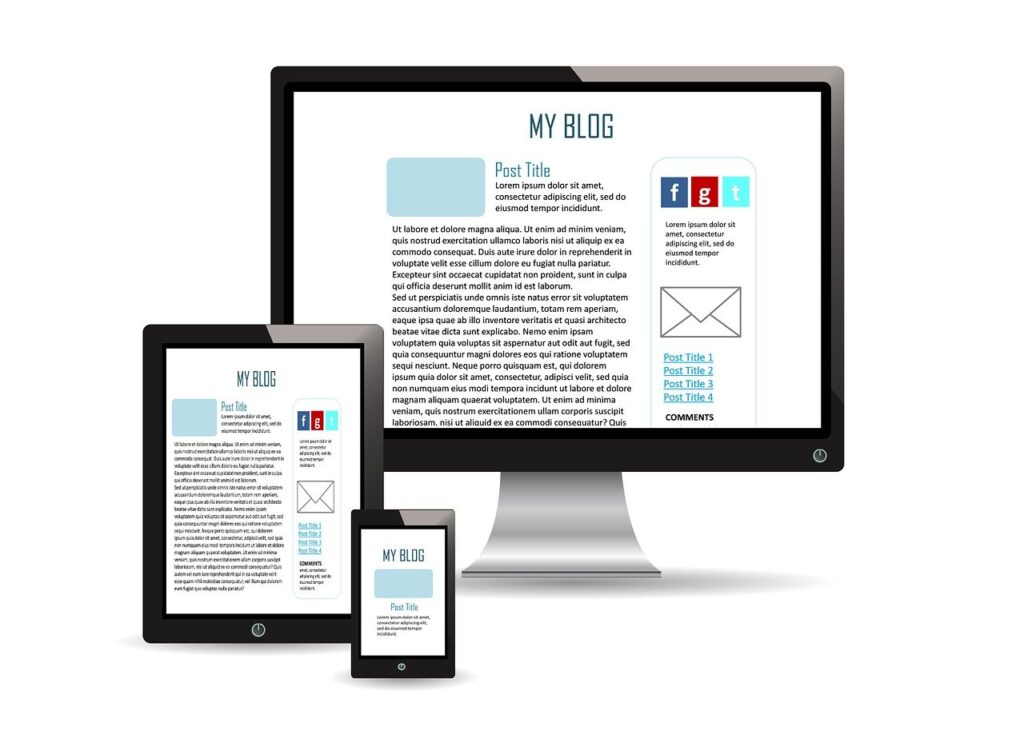
    5. Ensure Responsive Images

    Your images should look good and load quickly on all devices. Use responsive design techniques like srcset and sizes attributes in your HTML to serve appropriately sized images based on the user’s device.

    6. Leverage Lazy Loading

    Lazy loading delays the loading of images until they are needed (i.e., when they come into the viewport). This improves initial load times and overall performance. Most modern website builders and platforms support lazy loading.

    blogging images

    7. Create an Image Sitemap

    An image sitemap helps search engines find and index your images. You can create an image sitemap using tools like Yoast SEO for WordPress, which automatically includes images in your sitemap.

    8. Add Structured Data for Images

    Structured data, or schema markup, provides additional information about your images to search engines. Implementing structured data can enhance your search engine listings with rich snippets. Use Google’s Structured Data Markup Helper to add image data.

    9. Optimize Image Captions

    Captions provide context for your images and are often read more than the main content. Including relevant keywords in captions can help with SEO. Make sure captions are relevant and add value to the image.

    10. Regularly Update and Audit Images

    Perform regular audits of your website’s images to ensure they remain optimized. Tools like Google PageSpeed Insights and GTmetrix can help identify images that need optimization. Keep your images updated and optimized to maintain your site’s performance.

    Actions to Take

    Before Publishing a Blog Post

    • Choose the right image format: Ensure the format suits the image type and purpose.
    • Compress images: Use tools like TinyPNG to reduce file size without losing quality.
    • Rename image files: Use descriptive, keyword-rich names.
    • Add alt text: Make it descriptive and include relevant keywords.
    • Ensure responsiveness: Use srcset and sizes attributes for responsive images.
    • Enable lazy loading: Implement lazy loading to improve performance.
    • Create an image sitemap: Ensure search engines can find and index your images.
    • Add structured data: Use schema markup to provide additional information to search engines.

    Regular Maintenance

    • Audit image performance: Regularly check for unoptimized images using tools like Google PageSpeed Insights.
    • Update old images: Replace outdated or poor-quality images with new, optimized ones.
    • Review alt text and file names: Ensure they remain relevant and keyword-rich.

    Actions to Avoid

    Avoid Using Large Image Files

    • Resize before uploading: Don’t rely on HTML or CSS to resize images. Resize them to the appropriate dimensions before uploading.
    • Avoid unnecessary formats: Use the appropriate format for each image to prevent large file sizes.

    Don’t Overlook Image Descriptions

    • Don’t skip alt text: Always provide alt text for accessibility and SEO.
    • Avoid keyword stuffing: Use keywords naturally in alt text and file names.

    By following these best practices for optimizing blog images for SEO, you can enhance your blog’s performance, improve user experience, and achieve better search engine rankings. Regularly auditing and updating your images ensures that your site remains competitive and continues to attract and engage your audience. Happy blogging!

  • 10 Reasons Why Keyword Research for Blogging is Essential: A Beginner’s Guide

    Keyword research is a fundamental aspect of blogging that can make or break your online presence. For beginners, understanding the importance of keyword research for blogging is crucial to creating content that attracts readers and ranks well on search engines. This guide will delve into the nuances of keyword research, providing clear and actionable steps to help you succeed in the blogging world.

    What is Keyword Research?

    Keyword research involves identifying and analyzing the words and phrases that people use to search for information on the internet. By targeting the right keywords, bloggers can optimize their content to meet the needs of their audience and improve their search engine rankings.

    Why is Keyword Research Important?

    Understanding the significance of keyword research is the first step towards blogging success. Here are ten reasons why keyword research is essential for bloggers:

    1. Increases Visibility on Search Engines

    By targeting relevant keywords, you can improve your blog’s visibility on search engines like Google. When your content ranks higher, it attracts more organic traffic.

    2. Attracts the Right Audience

    Keyword research helps you identify the terms your target audience is using. By incorporating these keywords into your content, you attract readers who are genuinely interested in your topic.

    3. Enhances Content Relevance

    Using the right keywords ensures that your content is relevant to your audience’s needs. This increases the likelihood of readers finding your blog useful and engaging.

    4. Improves User Experience

    Keyword research enables you to understand what your audience is looking for. By addressing these queries in your content, you enhance the user experience and encourage repeat visits.

    5. Boosts SEO Performance

    Effective keyword research is the foundation of good SEO. By optimizing your content with the right keywords, you can improve your blog’s search engine performance and attract more traffic.

    6. Informs Content Strategy

    Keyword research provides insights into popular topics and trends in your niche. This information helps you create a content strategy that resonates with your audience and keeps them engaged.

    7. Increases Engagement and Conversions

    When your content aligns with what your audience is searching for, it increases engagement. Readers are more likely to share, comment, and take action, leading to higher conversion rates.

    8. Helps in Competitive Analysis

    Analyzing the keywords used by your competitors gives you a competitive edge. It helps you identify gaps in your content and discover opportunities to outperform your competition.

    9. Supports Paid Advertising Campaigns

    Keyword research is not only useful for organic search but also for paid advertising campaigns. By targeting high-performing keywords, you can optimize your ad spend and improve your ROI.

    10. Aids in Long-Term Success

    Consistent keyword research and optimization ensure your blog remains relevant and competitive in the long run. It helps you adapt to changing trends and maintain your audience’s interest.

    How to Conduct Keyword Research for Blogging

    Now that you understand the importance of keyword research, let’s explore how to conduct effective keyword research for your blog:

    1. Brainstorming Keywords

    Start by brainstorming a list of topics and keywords related to your niche. Think about what your audience might be searching for and make a list of potential keywords.

    2. Using Keyword Research Tools

    Utilize keyword research tools to expand your list and discover new keyword opportunities. Some popular tools include:

    • Google Keyword Planner: Provides keyword ideas and search volume data.
    • Ahrefs: Offers comprehensive keyword research, including keyword difficulty and competitor analysis.
    • SEMrush: Provides detailed insights into keyword performance and competitive analysis.
    • Ubersuggest: A user-friendly tool that generates keyword ideas and offers SEO metrics.

    3. Analyzing Search Volume and Competition

    Evaluate the search volume and competition for each keyword. Aim for a mix of high-volume and low-competition keywords to maximize your chances of ranking well.

    4. Identifying Long-Tail Keywords

    Long-tail keywords are longer and more specific phrases that attract targeted traffic. They may have lower search volume but often result in higher engagement and conversions.

    5. Considering User Intent

    Understand the intent behind each keyword. Are users looking for information, seeking to make a purchase, or searching for a specific answer? Align your content with the user intent to improve relevance and engagement.

    keyword research

    6. Organizing Keywords into Themes

    Group related keywords into themes or clusters. This helps you create comprehensive content that covers various aspects of a topic and improves your chances of ranking for multiple keywords.

    7. Using Keywords Naturally in Content

    Integrate keywords naturally into your content. Avoid keyword stuffing, which can harm your SEO and make your content less readable. Focus on providing value and answering your audience’s questions.

    8. Optimizing Meta Tags and URLs

    Incorporate your primary keyword into your SEO title, meta description, and URL. This helps search engines understand the relevance of your content and improves your click-through rate.

    9. Monitoring and Updating Keywords

    Regularly monitor the performance of your keywords and update your content accordingly. Keyword trends can change over time, so staying updated ensures your blog remains relevant and competitive.

    10. Measuring Success

    Use analytics tools to measure the success of your keyword strategy. Track metrics such as organic traffic, bounce rate, and conversions to understand the impact of your keyword research efforts.

    Actions to Take

    Regularly Conduct Keyword Research

    • Stay Updated: Keyword trends and user behavior can change. Regularly conduct keyword research to keep your content relevant.
    • Expand Your Reach: Continuously explore new keyword opportunities to reach a broader audience.

    Optimize Content for User Experience

    • Focus on Readability: Ensure your content is easy to read and understand. Use short paragraphs, bullet points, and subheadings.
    • Engage Your Audience: Create content that addresses your audience’s needs and encourages interaction.

    Actions to Avoid

    Avoid Keyword Stuffing

    • Natural Integration: Ensure keywords fit naturally into your content. Overusing keywords can harm readability and SEO.
    • Prioritize Quality: Focus on providing valuable content rather than obsessing over keyword density.

    Don’t Ignore Analytics

    • Track Performance: Use analytics tools to monitor the performance of your keywords and adjust your strategy as needed.
    • Adapt and Improve: Continuously refine your approach based on data and feedback.

    By following these tips and understanding the importance of keyword research for blogging, you can create content that not only attracts and engages your audience but also performs well on search engines. Remember, the key to successful keyword research is staying updated, being strategic, and continuously optimizing your content. Happy blogging.

  • 10 Tips on How to Create Engaging Blog Content: Tips and Techniques

    Creating engaging blog content is essential for attracting and retaining readers, boosting your blog’s visibility, and driving traffic. Whether you are a seasoned blogger or just starting, mastering the art of engaging content can make a significant difference in your blog’s success. This guide will explore effective tips and techniques on how to create engaging blog content that resonates with your audience.

    Understanding the Importance of Engaging Blog Content

    Engaging blog content not only captures the reader’s attention but also encourages interaction, sharing, and return visits. High-quality content can improve your search engine rankings, enhance your brand’s credibility, and build a loyal audience base. Here’s how you can achieve that:

    Start with a Captivating Title

    1. Crafting an Attention-Grabbing Title

    Your blog title is the first thing readers see, and it significantly influences whether they will click on your post.

    • Be Specific: Clear and concise titles give readers a glimpse of what to expect.
    • Use Numbers: Titles with numbers, like “10 Tips” or “5 Techniques,” tend to attract more clicks.
    • Incorporate Power Words: Words like “ultimate,” “essential,” and “proven” can make your title more compelling.

    Focus on a Strong Introduction

    2. Hook Your Readers from the Start

    The introduction sets the tone for your entire post and determines if readers will continue.

    • Start with a Question: Engage your readers by addressing a common problem or curiosity.
    • Use a Quote: An interesting quote can draw readers in and set the stage for your content.
    • Share an Anecdote: Personal stories can make your content relatable and intriguing.

    Provide Valuable and Relevant Content

    3. Know Your Audience

    Understanding your audience’s needs and interests is crucial for creating relevant content.

    • Conduct Surveys: Ask your readers what topics they are interested in.
    • Analyze Comments: Pay attention to comments and feedback on your blog posts.
    • Use Analytics: Tools like Google Analytics can help you understand your audience demographics and behavior.

    4. Offer Practical Tips and Insights

    Providing actionable advice makes your content valuable and keeps readers coming back for more.

    • Step-by-Step Guides: Break down complex processes into manageable steps.
    • Checklists: Offer checklists that readers can use as a reference.
    • Case Studies: Share real-life examples to illustrate your points.

    Enhance Readability

    5. Use Subheadings and Bullet Points

    Breaking your content into sections with subheadings makes it easier to read and navigate.

    • H2 and H3 Tags: Use these for your subheadings to improve SEO and readability.
    • Bullet Points: Lists and bullet points highlight key information and make your content skimmable.

    6. Keep Paragraphs Short

    Short paragraphs are easier to read and less intimidating than large blocks of text.

    • One Idea Per Paragraph: Stick to one main idea per paragraph to keep your writing clear and concise.
    • White Space: Use plenty of white space to give your readers’ eyes a break.

    Incorporate Visuals

    7. Use High-Quality Images and Videos

    Visual elements can make your content more engaging and help illustrate your points.

    • Relevant Images: Use images that complement and enhance your content.
    • Infographics: Create infographics to present data and statistics in an engaging format.
    • Videos: Embed videos to provide a different medium for consuming your content.

    Optimize for SEO

    8. Include Keywords Naturally

    Integrating keywords seamlessly into your content is essential for SEO.

    • Focus Keyword: Use your focus keyword, “create engaging blog content,” near the beginning of your post and throughout the content.
    • LSI Keywords: Include related keywords to enhance your content’s relevance.

    9. Use Internal and External Links

    Linking to other posts and reputable sources adds value and boosts SEO.

    • Internal Links: Link to your other relevant blog posts to keep readers on your site longer.
    • External Links: Cite authoritative sources to add credibility to your content.

    Encourage Interaction

    10. Engage with Your Readers

    Interaction fosters a sense of community and encourages readers to return to your blog.

    • Ask for Comments: End your posts with a question or call to action to invite comments.
    • Respond to Comments: Engage with readers by responding to their comments and feedback.
    • Share on Social Media: Promote your blog posts on social media to reach a wider audience and encourage sharing.

    blog, blogging, blogger

    Actions to Take

    Regularly Update Your Content

    • Review and Refresh: Periodically review your old posts and update them with new information and insights.
    • Repurpose Content: Turn popular posts into different formats, like videos or infographics.

    Analyze Performance

    • Use Analytics: Monitor your content’s performance using tools like Google Analytics.
    • Adjust Strategies: Use the data to refine your content strategy and focus on what works best.

    Actions to Avoid

    Avoid Keyword Stuffing

    • Natural Integration: Ensure keywords fit naturally into your content without overusing them.
    • Focus on Quality: Prioritize the quality and readability of your content over keyword density.

    Don’t Ignore Readability

    • Clarity is Key: Write in a clear, concise manner that’s easy for readers to understand.
    • Proofread: Always proofread your posts to catch errors and improve clarity.

    By following these tips and techniques on how to create engaging blog content, you can captivate your audience, boost your blog’s performance, and achieve greater success. Remember, the key to engaging content is understanding your audience, providing valuable insights, and continuously refining your approach. Happy blogging

  • 10 Essential Tools for Blogging Success: From Draft to Publish

    Creating a successful blog involves more than just writing great content. It requires a combination of tools that streamline the process from drafting your post to hitting the publish button. In this comprehensive guide, we’ll explore the essential tools for blogging success, helping you enhance your workflow and improve your blog’s performance.

    Understanding the Importance of Blogging Tools

    Blogging tools are designed to simplify and enhance various aspects of your blogging journey. From writing and editing to SEO and social media promotion, these tools ensure you produce high-quality content efficiently. Here’s a step-by-step guide to the must-have tools for every stage of blogging.

    Drafting Your Blog Post

    1. Word Processing Software

    Starting with the basics, a reliable word processing tool is essential for drafting your blog posts.

    • Microsoft Word: A classic choice, offering advanced formatting and editing features.
    • Google Docs: Ideal for collaboration, allowing multiple users to edit and comment in real time.

    2. Distraction-Free Writing Tools

    To boost your productivity and focus, consider using distraction-free writing tools.

    • Scrivener: Designed for long-form content, providing a clutter-free writing environment.
    • IA Writer: Offers a simple, minimalist interface to keep you focused on your writing.

    Research and Planning

    3. Keyword Research Tools

    SEO is crucial for driving traffic to your blog. Keyword research tools help you identify the best keywords to target.

    • Google Keyword Planner: A free tool that provides keyword ideas and search volume data.
    • Ahrefs: Offers comprehensive keyword research, including keyword difficulty and competitor analysis.

    4. Content Planning Tools

    Organizing your content ideas and planning your publishing schedule is key to maintaining consistency.

    • Trello: A versatile project management tool that helps you plan and organize your content calendar.
    • Asana: Allows you to create tasks, set deadlines, and collaborate with team members.

    Writing and Editing

    5. Grammar and Style Checkers

    Ensure your content is error-free and polished with grammar and style checking tools.

    • Grammarly: A powerful tool that checks for grammar, punctuation, and style issues.
    • Hemingway Editor: Helps improve readability by highlighting complex sentences and passive voice.

    6. Plagiarism Checkers

    Maintaining originality is crucial for building trust with your audience and avoiding SEO penalties.

    • Copyscape: Detects duplicate content and ensures your post is plagiarism-free.
    • Turnitin: Widely used for academic writing, also suitable for checking blog posts.

    SEO Optimization

    7. On-Page SEO Tools

    Optimizing your content for search engines involves using the right tools to ensure your blog ranks well.

    • Yoast SEO: A popular WordPress plugin that helps you optimize your content for search engines.
    • SEMrush: Offers comprehensive SEO analysis, including on-page SEO recommendations.

    8. Image Optimization Tools

    Images enhance your blog posts but can slow down your site if not optimized.

    • TinyPNG: Compresses images without sacrificing quality, improving page load speed.
    • ImageOptim: A Mac-specific tool that reduces file size while preserving image quality.

    Publishing and Promotion

    9. Content Management Systems (CMS)

    Choosing the right CMS is essential for managing and publishing your blog content.

    • WordPress: The most popular CMS, offering extensive customization options and plugins.
    • Squarespace: Known for its beautiful templates and ease of use, suitable for beginners.

    10. Social Media Management Tools

    Promoting your blog on social media is key to driving traffic and engaging with your audience.

    • Hootsuite: Allows you to schedule and manage posts across multiple social media platforms.
    • Buffer: Simplifies social media scheduling and provides analytics to track performance.

    blogging tools and resources

    Actions to Take

    Regularly Use These Tools

    • Integrate Tools into Workflow: Incorporate these tools into your daily blogging routine to streamline your process.
    • Stay Updated: Regularly update your tools to benefit from the latest features and improvements.
    • Analyze Performance: Use analytics and SEO tools to monitor your blog’s performance and make necessary adjustments.

    Customize Tools to Your Needs

    • Personalize Settings: Adjust tool settings to suit your specific needs and preferences.
    • Combine Tools: Use a combination of tools that complement each other for optimal results.

    Actions to Avoid

    Over-Reliance on Tools

    • Avoid Dependence: While tools are helpful, don’t rely solely on them. Maintain your creativity and unique voice.
    • Don’t Skip Editing: Even with grammar checkers, manually review your content to ensure it meets your standards.

    Ignoring User Experience

    • Prioritize Readability: Ensure your blog is easy to read and navigate, enhancing the user experience.
    • Responsive Design: Use tools that help ensure your blog is mobile-friendly and responsive.

    Conclusion

    Using the essential tools for blogging success can significantly enhance your productivity and the quality of your content. From drafting and editing to SEO and promotion, these tools streamline the entire blogging process, allowing you to focus on what you do best—creating valuable content for your readers. Remember, the key to success is not just using these tools but integrating them effectively into your workflow to achieve the best results. Happy blogging!

  • 10 Ways to Use Google Analytics to Improve Your Website Performance

    Google Analytics is a powerful tool that provides insights into your website’s performance, helping you make data-driven decisions to enhance user experience, increase traffic, and boost conversions. This step-by-step guide will walk you through how to use Google Analytics to improve your website performance effectively.

    Step 1: Set Up Google Analytics

    Before diving into the analytics, you need to set up Google Analytics on your website. Follow these steps:

    1. Create a Google Analytics Account: Sign up for a free account if you don’t have one.
    2. Add a Property: Create a property for your website to track its data.
    3. Install Tracking Code: Copy the tracking code provided and add it to your website’s HTML. This code will collect data on your website visitors.
    4. Verify Installation: Use the Real-Time report in Google Analytics to ensure the tracking code is working correctly.

    Step 2: Define Your Goals

    Setting up goals in Google Analytics allows you to track specific actions that are important to your business, such as form submissions, purchases, or sign-ups.

    • Access Goals: Go to Admin > View > Goals.
    • Create New Goal: Click on “+ New Goal” and choose a template or create a custom goal.
    • Configure Goal Details: Define the goal type (destination, duration, pages/screens per session, or event) and set up the required details.

    Step 3: Understand Your Audience

    Knowing who your audience is can help you tailor your content and marketing strategies more effectively.

    • Demographics and Interests: Navigate to Audience > Demographics and Audience > Interests to understand the age, gender, and interests of your visitors.
    • Geo Location: Check the Audience > Geo > Location report to see where your visitors are coming from. This information can help you target specific regions.
    • Behavior: The Audience > Behavior section shows how new and returning visitors interact with your site.

    Step 4: Analyze Traffic Sources

    Understanding where your traffic is coming from can help you focus your marketing efforts.

    • Acquisition Overview: Go to Acquisition > Overview to see a summary of your traffic sources, such as organic search, direct, social, and referral.
    • Source/Medium: The Acquisition > All Traffic > Source/Medium report provides detailed insights into specific sources and mediums driving traffic to your site.
    • Referrals: Check Acquisition > All Traffic > Referrals to see which external websites are sending traffic your way.

    google analytics

    Step 5: Evaluate User Behavior

    Analyzing how users interact with your website can help you identify areas for improvement.

    • Behavior Flow: Navigate to Behavior > Behavior Flow to visualize the path users take through your site. This helps you understand common user journeys and potential drop-off points.
    • Site Content: The Behavior > Site Content section provides insights into the performance of individual pages, including page views, average time on page, and bounce rate.
    • Site Speed: Check Behavior > Site Speed to analyze page load times and identify slow-loading pages that may need optimization.

    Step 6: Monitor Conversions

    Tracking conversions allows you to measure the success of your goals and marketing efforts.

    • Goal Completions: Go to Conversions > Goals > Overview to see the number of goal completions and conversion rates.
    • Funnel Visualization: If you have set up funnel goals, navigate to Conversions > Goals > Funnel Visualization to see where users drop off in the conversion process.
    • E-commerce Tracking: If you run an online store, enable e-commerce tracking to analyze product performance, transaction data, and revenue.

    Step 7: Use Custom Reports

    Custom reports allow you to tailor the data view to your specific needs.

    • Create Custom Reports: Go to Customization > Custom Reports and click on “+ New Custom Report.”
    • Define Metrics and Dimensions: Choose the metrics and dimensions you want to include in your report.
    • Save and Access: Save your custom report for easy access to the data that matters most to your business.

    Step 8: Set Up Alerts

    Alerts notify you of significant changes in your website’s performance.

    • Create Custom Alerts: Go to Admin > View > Custom Alerts and click on “+ New Alert.”
    • Define Alert Conditions: Set the conditions that trigger the alert, such as a sudden drop in traffic or a spike in bounce rate.
    • Receive Notifications: Choose how you want to receive alerts (email or SMS) to stay informed about critical changes.

    Step 9: Utilize Segments

    Segments allow you to analyze specific subsets of your traffic.

    • Create New Segments: Click on “+ Add Segment” in any report and choose from predefined segments or create a custom segment.
    • Compare Segments: Use segments to compare different groups of users, such as new vs. returning visitors, mobile vs. desktop users, or users from different traffic sources.
    • Refine Analysis: Segments help you drill down into specific behaviors and characteristics, providing deeper insights into your audience.

    Step 10: Continuous Improvement

    SEO and website optimization are ongoing processes. Regularly review your Google Analytics data to identify trends and areas for improvement.

    • Monthly Reports: Create monthly reports to track your progress and identify any significant changes.
    • A/B Testing: Use A/B testing to experiment with different strategies and measure their impact on your goals.
    • Stay Updated: Keep up with the latest Google Analytics features and updates to ensure you are making the most of the tool.

    Actions to Take:

    • Regularly Monitor Key Metrics: Make it a habit to check key metrics such as traffic sources, user behavior, and conversion rates.
    • Adjust Marketing Strategies: Use the insights gained from Google Analytics to refine your marketing strategies and campaigns.
    • Optimize Underperforming Pages: Identify and improve pages with high bounce rates or low engagement.
    • Enhance User Experience: Use behavioral data to enhance the user experience on your website, ensuring visitors can easily find what they are looking for.

    Actions to Avoid:

    • Ignoring Data: Don’t neglect the data provided by Google Analytics. Regular analysis is crucial for continuous improvement.
    • Overlooking Mobile Users: Ensure your website is optimized for mobile users, as a significant portion of traffic often comes from mobile devices.
    • Neglecting Goals and Conversions: Failing to set and monitor goals can lead to missed opportunities for growth and optimization.

    By following this comprehensive guide on how to use Google Analytics to improve your website performance, you can make informed decisions that enhance user experience, increase traffic, and boost conversions. Remember, the key to success is regular monitoring and continuous optimization based on the insights gained from your analytics data.

  • How to Optimize Your Blog for SEO: A Step-by-Step Guide

    In today’s digital landscape, having a blog is a powerful way to share your thoughts, expertise, and stories with a global audience. However, to ensure your blog reaches as many readers as possible, you need to optimize it for search engines. This step-by-step guide will walk you through how to optimize your blog for SEO, helping you improve your search engine rankings and drive more traffic to your site.

    Understanding SEO and Its Importance

    Search Engine Optimization (SEO) is the process of improving your website to increase its visibility on search engines like Google. When your blog is optimized for SEO, it is more likely to appear on the first page of search results, making it easier for potential readers to find your content.

    Step 1: Conduct Keyword Research

    Keyword research is the cornerstone of any successful SEO strategy. Here’s how to get started:

    • Identify Relevant Keywords: Use tools like Google Keyword Planner, SEMrush, or Ahrefs to find keywords related to your blog’s topic. Focus on finding keywords with a good balance of search volume and competition.
    • Analyze Competitors: Look at the keywords your competitors are ranking for and identify opportunities to target similar keywords.
    • Long-Tail Keywords: Incorporate long-tail keywords (phrases with three or more words) as they are often less competitive and more specific to user intent.

    step by step blogging

    Step 2: Optimize Your Blog Post Title

    Your blog post title is one of the first things search engines and readers see. Make sure it is SEO-friendly by following these tips:

    • Include the Focus Keyword: Use the focus keyword near the beginning of the title.
    • Keep It Engaging: Make your title compelling to attract clicks. Using numbers and power words can help.
    • Limit Length: Aim for 60 characters or less to ensure it displays fully in search results.

    Step 3: Craft an Engaging Meta Description

    The meta description is a brief summary of your blog post that appears under the title in search results. A well-written meta description can improve your click-through rate (CTR).

    • Include the Focus Keyword: Use the focus keyword early in the meta description.
    • Be Descriptive and Concise: Clearly describe what the post is about in 150-160 characters.
    • Call to Action: Encourage readers to click through with phrases like “Learn more” or “Discover how.”

    Step 4: Optimize Your URL Structure

    A clean and descriptive URL structure helps search engines understand your content and improves user experience.

    • Include the Focus Keyword: Make sure your focus keyword is part of the URL.
    • Keep It Short: Aim for a short, readable URL. Avoid using stop words like “and,” “or,” “but,” etc.
    • Use Hyphens: Separate words with hyphens rather than underscores.

    Step 5: Use Headings Effectively

    Proper use of headings (H1, H2, H3, etc.) helps search engines understand the structure of your content and makes it more readable for users.

    • H1 Tag: Use the focus keyword in the H1 tag (your main title).
    • Subheadings: Use H2 and H3 tags for subheadings and include relevant keywords. This breaks up your content and makes it easier to scan.

    Step 6: Optimize Your Content

    High-quality content is essential for SEO. Follow these guidelines to ensure your content is optimized:

    • Keyword Density: Maintain around 1% keyword density. Use the focus keyword naturally throughout the content.
    • Engaging Introduction: Start with a compelling introduction that includes the focus keyword.
    • Readability: Use short paragraphs, bullet points, and visuals to make your content easy to read.
    • Internal and External Links: Link to other relevant posts on your blog (internal links) and reputable external sources to provide additional value.

    Step 7: Optimize Images and Media

    Images and media enhance your blog post but need to be optimized for SEO as well.

    • Alt Text: Use descriptive alt text for all images, including the focus keyword where relevant.
    • File Names: Rename image files to include the focus keyword before uploading them.
    • Compression: Compress images to improve page load speed without sacrificing quality.

    Step 8: Improve Page Load Speed

    Page load speed is a critical factor for both user experience and SEO. Slow-loading pages can hurt your rankings and deter visitors.

    • Optimize Images: As mentioned, compress images to reduce load times.
    • Use a Content Delivery Network (CDN): CDNs help distribute your content across various servers globally, reducing load times.
    • Minimize Plugins: Limit the number of plugins you use and ensure they are all essential and optimized.

    Step 9: Mobile Optimization

    With the increasing use of mobile devices, ensuring your blog is mobile-friendly is crucial for SEO.

    • Responsive Design: Use a responsive design that adjusts to different screen sizes.
    • Mobile-Friendly Themes: Choose themes optimized for mobile use.
    • Test Mobile Usability: Use tools like Google’s Mobile-Friendly Test to check your blog’s mobile usability.

    Step 10: Promote Your Blog Post

    After optimizing your blog post, promotion is key to driving traffic and engagement.

    • Social Media: Share your post on social media platforms to reach a wider audience.
    • Email Marketing: Include your blog post in your email newsletter to inform your subscribers.
    • Influencer Outreach: Reach out to influencers in your niche and ask them to share your content.

    Step 11: Monitor and Update Your Blog Post

    SEO is an ongoing process. Regularly monitor your blog’s performance and make updates as needed.

    • Use Analytics: Tools like Google Analytics can help track your blog’s performance and identify areas for improvement.
    • Update Content: Periodically update your blog posts to keep the content fresh and relevant.
    • Respond to Comments: Engage with your readers by responding to comments and feedback.

    By following this step-by-step guide on how to optimize your blog for SEO, you can improve your blog’s visibility, attract more readers, and ultimately grow your audience. Remember, SEO is not a one-time task but an ongoing process that requires regular attention and adaptation to changes in search engine algorithms and user behavior. Happy blogging!

  • 10 Best Vector Graphic Editors for Creating Illustrations 🎨✍️

    Creating stunning illustrations requires the right tools, and vector graphic editors are essential for artists, designers, and hobbyists. These editors offer the flexibility to create scalable graphics without losing quality, making them perfect for everything from logos to detailed artwork. Here’s a detailed look at the top 10 vector graphic editors to elevate your illustration game!


    1. Adobe Illustrator ⭐

    Introduction: Adobe Illustrator is a powerhouse in the vector graphic design world. Known for its comprehensive toolset and industry-standard status, it’s a favorite among professional designers and illustrators. Whether you’re crafting intricate illustrations, logos, or icons, Illustrator offers precision and versatility.

    Key Features:

    • 🖌️ Advanced Vector Editing Tools: Provides a wide array of brushes, shapes, and paths.
    • 🌐 Integration with Adobe Creative Cloud: Seamlessly integrates with other Adobe apps.
    • 📏 Precision Tools: Includes grid, ruler, and guides for precise designs.
    • 💻 Multi-Platform Support: Available on both Windows and macOS.
    • 🤝 Collaborative Tools: Allows for real-time collaboration and sharing.

    Pros and Cons:

    Pros Cons
    ✅ Industry standard with extensive features ❌ High learning curve
    ✅ Regular updates and community support ❌ Expensive subscription model
    ✅ Excellent integration with other Adobe apps ❌ Requires significant system resources

    Intended Audience: Professional graphic designers, illustrators, and artists.

    Pricing: Subscription-based.

    Overall Value: Adobe Illustrator is the go-to tool for professionals seeking robust and precise vector graphic capabilities.

    Rating: ★★★★★


    2. CorelDRAW 🎨

    Introduction: CorelDRAW has long been a staple in the graphic design industry, known for its user-friendly interface and powerful features. It’s ideal for creating everything from web graphics to complex illustrations.

    Key Features:

    • 🖍️ Vector Illustration Tools: Includes a vast array of drawing tools.
    • 🔄 Non-Destructive Editing: Allows changes without altering the original image.
    • 🌟 Advanced Color Management: Ensures consistent color output.
    • 📏 Layout Tools: Provides grid, guidelines, and snapping for precise layouts.
    • 🌍 Cross-Platform Compatibility: Available on both Windows and macOS.

    Pros and Cons:

    Pros Cons
    ✅ User-friendly with a short learning curve ❌ Can be pricey for small businesses
    ✅ Extensive format compatibility ❌ Lacks some advanced features found in Illustrator
    ✅ Excellent support and tutorials ❌ Occasional performance issues on complex projects

    Intended Audience: Graphic designers, marketing professionals, and small business owners.

    Pricing: One-time purchase and subscription options available.

    Overall Value: CorelDRAW offers a great balance of power and ease of use, making it a versatile choice for various design needs.

    Rating: ★★★★☆


    3. Inkscape 🌿

    Introduction: Inkscape is a free and open-source vector graphic editor, beloved by hobbyists and professionals alike. It offers a robust set of features comparable to paid tools, making it an excellent choice for those on a budget.

    Key Features:

    • 🌈 Advanced Drawing Tools: Includes bezier and spiro curves.
    • 🔄 Flexible Workflow: Supports various file formats including SVG, AI, EPS.
    • 🧩 Extensions and Add-Ons: Highly customizable with plugins.
    • 💡 User-Friendly Interface: Intuitive and easy to navigate.
    • 🔄 Cross-Platform Compatibility: Works on Windows, macOS, and Linux.

    Pros and Cons:

    Pros Cons
    ✅ Free and open-source ❌ Interface can feel dated
    ✅ Extensive feature set ❌ Performance issues with large files
    ✅ Active community support ❌ Steeper learning curve for beginners

    Intended Audience: Hobbyists, students, and budget-conscious designers.

    Pricing: Free and open-source.

    Overall Value: Inkscape is an exceptional tool for those seeking powerful vector graphic capabilities without the cost.

    Rating: ★★★★☆


    4. Affinity Designer ✨

    Introduction: Affinity Designer is a professional-grade vector graphic editor known for its speed and precision. It’s a favorite among creatives for its affordable pricing and high-quality toolset.

    Key Features:

    • 🌟 Precision Tools: Advanced snapping and alignment options.
    • 🖍️ Versatile Artboards: Easily manage multiple projects.
    • 🌐 Seamless Zoom: Zoom in up to 1,000,000% for intricate details.
    • 🔄 Non-Destructive Operations: Allows editing without altering the original.
    • 💻 Cross-Platform Support: Available on Windows, macOS, and iPad.

    Pros and Cons:

    Pros Cons
    ✅ Affordable one-time purchase ❌ Limited vector editing compared to Illustrator
    ✅ Fast performance and responsive ❌ Smaller community and fewer tutorials
    ✅ Excellent customer support ❌ Occasional bugs in new updates

    Intended Audience: Professional designers, illustrators, and hobbyists.

    Pricing: One-time purchase.

    Overall Value: Affinity Designer provides professional tools at an accessible price, making it ideal for both professionals and enthusiasts.

    Rating: ★★★★★


    5. Gravit Designer 🌐

    Introduction: Gravit Designer is a versatile vector graphic editor that runs smoothly on any platform. It’s perfect for both beginners and professionals looking for a powerful, cloud-based tool.

    Key Features:

    • ☁️ Cloud Integration: Access your projects anywhere.
    • 🖍️ Comprehensive Toolset: Includes all essential vector editing tools.
    • 🌐 Cross-Platform Compatibility: Works on Windows, macOS, Linux, and browsers.
    • 🎨 Advanced Styling Options: Extensive color and gradient tools.
    • 🔄 Flexible Export Options: Supports various file formats including PDF, SVG.

    Pros and Cons:

    Pros Cons
    ✅ Free version available ❌ Limited offline functionality
    ✅ Intuitive interface ❌ Advanced features require a Pro subscription
    ✅ Regular updates and improvements ❌ Occasional performance lags

    Intended Audience: Beginners, students, and professionals seeking a cloud-based solution.

    Pricing: Free version with premium features in Pro subscription.

    Overall Value: Gravit Designer is a flexible and accessible tool, great for both new and experienced designers.

    Rating: ★★★★☆


    6. Vectr 🖋️

    Introduction: Vectr is a free, user-friendly vector graphic editor that runs both online and offline. It’s designed for quick and simple vector graphics creation, making it ideal for beginners and casual users.

    Key Features:

    • ☁️ Cloud-Based: Save and sync your work online.
    • 🖍️ Simple Interface: Easy to learn and use.
    • 🎨 Essential Tools: Provides all basic vector editing tools.
    • 🌐 Cross-Platform: Works on Windows, macOS, Linux, and browsers.
    • 🔄 Real-Time Collaboration: Share and work on projects with others.

    Pros and Cons:

    Pros Cons
    ✅ Completely free ❌ Limited advanced features
    ✅ Intuitive and beginner-friendly ❌ Performance issues with complex designs
    ✅ Cross-platform support ❌ No offline desktop version

    Intended Audience: Beginners, students, and casual designers.

    Pricing: Free.

    Overall Value: Vectr is a fantastic free tool for those new to vector graphics or needing a simple, quick solution.

    Rating: ★★★☆☆


    7. Sketch ✏️

    Introduction: Sketch is a leading vector graphic editor for macOS, widely used in UI/UX design. Its clean interface and powerful features make it a top choice for web and mobile app designers.

    Key Features:

    • 🖍️ Vector Editing: Advanced tools for creating detailed designs.
    • 📐 Responsive Design Features: Create designs for multiple devices.
    • 🔄 Symbols and Styles: Reusable components for consistent design.
    • 💻 Collaborative Tools: Work with teams and share feedback.
    • 🌐 Extensive Plugin Support: Enhance functionality with numerous plugins.

    Pros and Cons:

    Pros Cons
    ✅ Optimized for UI/UX design ❌ macOS only
    ✅ Extensive plugin ecosystem ❌ Subscription model can be expensive
    ✅ Intuitive and modern interface ❌ Limited vector editing compared to some tools

    Intended Audience: UI/UX designers, web designers, and app developers.

    Pricing: Subscription-based.

    Overall Value: Sketch is an essential tool for UI/UX designers, offering powerful features and a streamlined workflow.

    Rating: ★★★★★


    8. Boxy SVG 📦

    Introduction: Boxy SVG is a lightweight, web-based vector graphic editor that provides a robust set of tools for creating and editing SVG files. It’s perfect for designers who need a quick and efficient tool for vector graphics.

    Key Features:

    • ☁️ Web-Based: No installation required, works directly in browsers.
    • 🖍️ Intuitive Tools: Simple and user-friendly interface.
    • 🌐 SVG Editing: Focused on creating and editing SVG files.
    • 💻 Cross-Platform Compatibility: Works on all major browsers and platforms.
    • 🔄 Export Options: Supports various file formats including PNG and JPEG.

    Pros and Cons:

    Pros Cons
    ✅ Lightweight and fast ❌ Limited advanced features
    ✅ Easy to use ❌ Performance depends on browser
    ✅ Affordable pricing ❌ No offline desktop version

    Intended Audience: Web designers, developers, and hobbyists.

    Pricing: Free version with additional features in Pro subscription.

    Overall Value: Boxy SVG is a great lightweight option for quick SVG editing and creation, especially for web designers.

    Rating: ★★★★☆


    9. Figma 📐

    Introduction: Figma is a cloud-based design tool perfect for collaborative projects. It’s widely used for UI/UX design due to its real-time collaboration capabilities and powerful design tools.

    Key Features:

    • ☁️ Cloud-Based Collaboration: Work with teams in real-time.
    • 🖍️ Vector Network: Innovative vector editing tools.
    • 📐 Responsive Design: Create designs that adapt to different screen sizes.
    • 🌐 Cross-Platform: Available on Windows, macOS, and browsers.
    • 🔄 Prototyping Tools: Create interactive prototypes.

    Pros and Cons:

    Pros Cons
    ✅ Real-time collaboration ❌ Requires internet connection
    ✅ Powerful UI/UX tools ❌ Subscription model can be costly
    ✅ Cross-platform support ❌ Can be overwhelming for beginners

    Intended Audience: UI/UX designers, web designers, and product designers.

    Pricing: Free version with premium features in subscription plans.

    Overall Value: Figma is an unparalleled tool for collaborative design projects, especially in the UI/UX field.

    Rating: ★★★★★


    10. SVG-Edit 🖌️

    Introduction: SVG-Edit is a free, web-based SVG editor with a simple and straightforward interface. It’s an open-source tool that allows quick and easy editing of SVG files directly in the browser.

    Key Features:

    • ☁️ Web-Based: No installation required.
    • 🖍️ Basic Vector Tools: Provides essential vector editing capabilities.
    • 🌐 Open-Source: Free and community-supported.
    • 🔄 Cross-Platform Compatibility: Works on all major browsers.
    • 💡 Simple Interface: Easy to use and navigate.

    Pros and Cons:

    Pros Cons
    ✅ Completely free and open-source ❌ Limited advanced features
    ✅ Easy to use ❌ Interface can feel outdated
    ✅ Cross-platform support ❌ Performance depends on browser

    Intended Audience: Hobbyists, students, and designers needing a quick SVG solution.

    Pricing: Free and open-source.

    Overall Value: SVG-Edit is perfect for quick and simple SVG edits, providing essential tools without any cost.

    Rating: ★★★☆☆

  • 10 Free Browser Extensions to Enhance Your Online Experience

    In today’s digital age, enhancing your online experience is not just a luxury, but a necessity. With countless hours spent browsing the internet for work, entertainment, or learning, having the right tools can make a significant difference. Browser extensions are powerful add-ons that can streamline your workflow, boost productivity, and offer enhanced security. They transform the way you interact with the web, providing functionalities that browsers alone can’t offer.

    In this listicle, we’ll explore 10 Free Browser Extensions to Enhance Your Online Experience. Each tool is meticulously evaluated to give you a comprehensive understanding of its features, benefits, and potential drawbacks. Whether you’re a student, professional, or casual internet user, these extensions cater to diverse needs and can revolutionize your web usage. Let’s dive in and discover these essential tools that promise to elevate your browsing experience to the next level.

    🌟 1. Grammarly 🌟

    Introduction: Grammarly is an indispensable tool for anyone looking to enhance their writing skills. Whether you’re drafting an email, writing a blog post, or typing up a report, this browser extension helps you ensure your text is clear, error-free, and impactful.

    Detailed Evaluation: Grammarly offers real-time grammar and spell-checking, advanced style suggestions, and a plagiarism checker. It’s like having a professional editor on call, providing instant feedback on your writing. With support for over 400 types of checks and features, Grammarly covers everything from grammatical errors to advanced punctuation and style suggestions.

    Notable Features:

    • 🌟 Real-time grammar and spell-checking
    • 🌟 Advanced style suggestions
    • 🌟 Plagiarism detection
    • 🌟 Vocabulary enhancement tips

    Pros and Cons:

    Pros Cons
    ✅ Real-time feedback ❌ Requires an internet connection
    ✅ User-friendly interface ❌ Premium version needed for advanced features
    ✅ Compatible with most websites ❌ Some features limited to English

    Pricing: Free (with premium options)

    Intended Audience: Writers, bloggers, students, professionals

    Overall Value: Grammarly is an essential tool for anyone aiming to improve their writing quality.

    Rating: ★★★★☆


    🌟 2. Adblock Plus 🌟

    Introduction: Adblock Plus is one of the most popular ad blockers available, designed to enhance your browsing experience by removing intrusive ads. This tool is essential for anyone looking to surf the web without the annoyance of unwanted advertisements.

    Detailed Evaluation: Adblock Plus provides a seamless browsing experience by blocking ads, tracking, malware, and more. It’s customizable, allowing users to whitelist their favorite sites to support content creators. The extension also helps in speeding up page load times by removing heavy ad scripts.

    Notable Features:

    • 🌟 Blocks intrusive ads
    • 🌟 Customizable whitelists
    • 🌟 Protects against malware
    • 🌟 Speeds up page load times

    Pros and Cons:

    Pros Cons
    ✅ Reduces ad clutter ❌ May block some non-intrusive ads
    ✅ Enhances privacy ❌ Can slow down browser performance
    ✅ Customizable ❌ Some ads can bypass the filter

    Pricing: Free

    Intended Audience: General users, privacy-conscious individuals, frequent web surfers

    Overall Value: Adblock Plus is perfect for a cleaner and faster browsing experience.

    Rating: ★★★★☆


    🌟 3. LastPass 🌟

    Introduction: LastPass is a robust password manager that helps you keep your passwords safe and accessible. With cyber threats on the rise, this tool is a must-have for anyone looking to enhance their online security.

    Detailed Evaluation: LastPass stores your passwords in an encrypted vault, accessible only to you. It autofills passwords, generates strong passwords, and syncs across devices. The extension also offers secure notes, allowing you to store sensitive information like Wi-Fi passwords or membership details securely.

    Notable Features:

    • 🌟 Password storage and autofill
    • 🌟 Secure password generation
    • 🌟 Cross-device syncing
    • 🌟 Secure notes storage

    Pros and Cons:

    Pros Cons
    ✅ Enhances security ❌ Premium features are paid
    ✅ Easy to use ❌ Occasional sync issues
    ✅ Cross-platform support ❌ Reliance on master password

    Pricing: Free (with premium options)

    Intended Audience: General users, professionals, security-conscious individuals

    Overall Value: LastPass is an excellent tool for managing and securing your passwords.

    Rating: ★★★★☆


    🌟 4. Pocket 🌟

    Introduction: Pocket is a convenient tool for saving articles, videos, and other web content to read later. It’s perfect for those who come across interesting content but don’t have the time to explore it immediately.

    Detailed Evaluation: Pocket allows users to save content from any device, which can be accessed offline. It organizes saved items and provides a clean, distraction-free reading experience. The tool also suggests popular articles, helping users discover new content aligned with their interests.

    Notable Features:

    • 🌟 Save content from any device
    • 🌟 Offline access
    • 🌟 Clean reading view
    • 🌟 Content recommendations

    Pros and Cons:

    Pros Cons
    ✅ Offline access ❌ Limited organizational features
    ✅ Easy to save and retrieve content ❌ Ads in free version
    ✅ Clean interface ❌ Premium features are paid

    Pricing: Free (with premium options)

    Intended Audience: Avid readers, researchers, students

    Overall Value: Pocket is a fantastic tool for saving and organizing web content for later reading.

    Rating: ★★★★☆

    Browser Extensions


    🌟 5. Honey 🌟

    Introduction: Honey is a must-have tool for online shoppers. It automatically finds and applies coupon codes at checkout, ensuring you always get the best deals.

    Detailed Evaluation: Honey works with thousands of online retailers, scouring the web for the best coupon codes. It also provides price tracking for items on Amazon, alerting you when prices drop. The tool’s simple interface and seamless integration with popular browsers make it a favorite among shoppers.

    Notable Features:

    • 🌟 Automatic coupon code application
    • 🌟 Price tracking and alerts
    • 🌟 Works with numerous retailers
    • 🌟 User-friendly interface

    Pros and Cons:

    Pros Cons
    ✅ Saves money ❌ Not all stores supported
    ✅ Easy to use ❌ Some coupons may be expired
    ✅ Price tracking ❌ Limited to online shopping

    Pricing: Free

    Intended Audience: Online shoppers, deal hunters, budget-conscious individuals

    Overall Value: Honey is an excellent extension for anyone looking to save money while shopping online.

    Rating: ★★★★☆


    🌟 6. Dark Reader 🌟

    Introduction: Dark Reader is a fantastic tool for those who prefer dark mode. It inverts bright colors on websites, making them easier on the eyes, especially during nighttime browsing.

    Detailed Evaluation: Dark Reader provides a customizable dark theme for websites, allowing users to adjust brightness, contrast, and sepia filters. It supports various browsers and ensures a consistent dark mode experience across all web pages. This extension is particularly beneficial for reducing eye strain.

    Notable Features:

    • 🌟 Customizable dark themes
    • 🌟 Brightness and contrast adjustments
    • 🌟 Supports multiple browsers
    • 🌟 Reduces eye strain

    Pros and Cons:

    Pros Cons
    ✅ Reduces eye strain ❌ Can affect website readability
    ✅ Customizable settings ❌ May slow down browsing
    ✅ Consistent dark mode ❌ Some elements may not render properly

    Pricing: Free

    Intended Audience: Nighttime surfers, users with eye strain, dark mode enthusiasts

    Overall Value: Dark Reader is a great tool for anyone who prefers a dark theme for their browsing experience.

    Rating: ★★★★☆


    🌟 7. OneTab 🌟

    Introduction: OneTab is an essential tool for users who have countless tabs open at once. It helps you convert all open tabs into a single list, saving memory and decluttering your browser.

    Detailed Evaluation: OneTab consolidates open tabs into a list, which can be restored individually or all at once. This not only helps in organizing tabs but also reduces the memory usage of your browser, leading to faster performance. The extension is simple yet incredibly effective for improving productivity.

    Notable Features:

    • 🌟 Consolidates tabs into a list
    • 🌟 Saves memory
    • 🌟 Improves browser performance
    • 🌟 Simple and effective

    Pros and Cons:

    Pros Cons
    ✅ Saves memory ❌ May lose unsaved data
    ✅ Easy to use ❌ Limited customization
    ✅ Improves performance ❌ Requires manual tab restoration

    Pricing: Free

    Intended Audience: Heavy internet users, multitaskers, productivity seekers

    Overall Value: OneTab is perfect for anyone looking to declutter their browser and save memory.

    Rating: ★★★★☆


    🌟 8. uBlock Origin 🌟

    Introduction: uBlock Origin is a powerful, efficient ad blocker that enhances your browsing experience by blocking ads and trackers without consuming much of your system’s resources.

    Detailed Evaluation: uBlock Origin provides extensive filter lists to block ads, trackers, and malware. It’s lightweight, ensuring your browsing speed isn’t compromised. The extension is highly customizable, allowing users to add or remove specific filters based on their needs. It’s perfect for those who want a clean, fast, and secure browsing experience.

    Notable Features:

    • 🌟 Blocks ads and trackers
    • 🌟 Lightweight and efficient
    • 🌟 Customizable filter lists
    • 🌟 Enhances security

    Pros and Cons:

    Pros Cons
    ✅ Lightweight ❌ May block desired content
    ✅ Highly effective ❌ Requires configuration
    ✅ Customizable ❌ Limited user support

    Pricing: Free

    Intended Audience: Privacy-conscious users, frequent web surfers, general users

    Overall Value: uBlock Origin is an excellent choice for a lightweight and effective ad blocker.

    Rating: ★★★★☆


    🌟 9. Evernote Web Clipper 🌟

    Introduction: Evernote Web Clipper is an invaluable tool for capturing and organizing online content. It allows users to clip web pages, articles, and PDFs directly into their Evernote account for later reference.

    Detailed Evaluation: Evernote Web Clipper saves content with a single click, providing options to clip entire pages, simplified articles, or bookmarks. It’s perfect for researchers, students, and anyone who wants to organize online content efficiently. The extension also allows annotations, making it easier to highlight important information.

    Notable Features:

    • 🌟 Clip web pages and articles
    • 🌟 Save PDFs directly to Evernote
    • 🌟 Annotate and highlight content
    • 🌟 Organize clippings efficiently

    Pros and Cons:

    Pros Cons
    ✅ Easy to use ❌ Requires Evernote account
    ✅ Multiple clipping options ❌ Free version has limitations
    ✅ Annotations and highlights ❌ Occasional syncing issues

    Pricing: Free (with premium options)

    Intended Audience: Researchers, students, content organizers

    Overall Value: Evernote Web Clipper is an excellent tool for capturing and organizing web content.

    Rating: ★★★★☆


    🌟 10. Todoist 🌟

    Introduction: Todoist is a powerful task manager that helps you organize your to-dos and projects. It’s perfect for anyone looking to boost their productivity and manage their tasks efficiently.

    Detailed Evaluation: Todoist allows users to create tasks, set deadlines, and prioritize their to-dos. The extension integrates seamlessly with various platforms, ensuring your tasks are accessible across all devices. Its intuitive interface and robust feature set make it a top choice for individuals and teams alike.

    Notable Features:

    • 🌟 Task creation and management
    • 🌟 Deadline and priority setting
    • 🌟 Cross-platform integration
    • 🌟 Collaboration features

    Pros and Cons:

    Pros Cons
    ✅ Easy to use ❌ Premium features are paid
    ✅ Cross-platform support ❌ Free version has limitations
    ✅ Collaboration features ❌ Can be overwhelming for new users

    Pricing: Free (with premium options)

    Intended Audience: Productivity enthusiasts, professionals, students

    Overall Value: Todoist is an excellent tool for managing tasks and boosting productivity.

    Rating: ★★★★☆


    Comparison Table

    Tool Notable Features Pros Cons Pricing Intended Audience Rating
    Grammarly 🌟 Real-time grammar and spell-checking
    🌟 Advanced style suggestions
    🌟 Plagiarism detection
    🌟 Vocabulary enhancement tips
    ✅ Real-time feedback
    ✅ User-friendly interface
    ✅ Compatible with most websites
    ❌ Requires an internet connection
    ❌ Premium version needed for advanced features
    ❌ Some features limited to English
    Free (with premium options) Writers, bloggers, students, professionals ★★★★☆
    Adblock Plus 🌟 Blocks intrusive ads
    🌟 Customizable whitelists
    🌟 Protects against malware
    🌟 Speeds up page load times
    ✅ Reduces ad clutter
    ✅ Enhances privacy
    ✅ Customizable
    ❌ May block some non-intrusive ads
    ❌ Can slow down browser performance
    ❌ Some ads can bypass the filter
    Free General users, privacy-conscious individuals, frequent web surfers ★★★★☆
    LastPass 🌟 Password storage and autofill
    🌟 Secure password generation
    🌟 Cross-device syncing
    🌟 Secure notes storage
    ✅ Enhances security
    ✅ Easy to use
    ✅ Cross-platform support
    ❌ Premium features are paid
    ❌ Occasional sync issues
    ❌ Reliance on master password
    Free (with premium options) General users, professionals, security-conscious individuals ★★★★☆
    Pocket 🌟 Save content from any device
    🌟 Offline access
    🌟 Clean reading view
    🌟 Content recommendations
    ✅ Offline access
    ✅ Easy to save and retrieve content
    ✅ Clean interface
    ❌ Limited organizational features
    ❌ Ads in free version
    ❌ Premium features are paid
    Free (with premium options) Avid readers, researchers, students ★★★★☆
    Honey 🌟 Automatic coupon code application
    🌟 Price tracking and alerts
    🌟 Works with numerous retailers
    🌟 User-friendly interface
    ✅ Saves money
    ✅ Easy to use
    ✅ Price tracking
    ❌ Not all stores supported
    ❌ Some coupons may be expired
    ❌ Limited to online shopping
    Free Online shoppers, deal hunters, budget-conscious individuals ★★★★☆
    Dark Reader 🌟 Customizable dark themes
    🌟 Brightness and contrast adjustments
    🌟 Supports multiple browsers
    🌟 Reduces eye strain
    ✅ Reduces eye strain
    ✅ Customizable settings
    ✅ Consistent dark mode
    ❌ Can affect website readability
    ❌ May slow down browsing
    ❌ Some elements may not render properly
    Free Nighttime surfers, users with eye strain, dark mode enthusiasts ★★★★☆
    OneTab 🌟 Consolidates tabs into a list
    🌟 Saves memory
    🌟 Improves browser performance
    🌟 Simple and effective
    ✅ Saves memory
    ✅ Easy to use
    ✅ Improves performance
    ❌ May lose unsaved data
    ❌ Limited customization
    ❌ Requires manual tab restoration
    Free Heavy internet users, multitaskers, productivity seekers ★★★★☆
    uBlock Origin 🌟 Blocks ads and trackers
    🌟 Lightweight and efficient
    🌟 Customizable filter lists
    🌟 Enhances security
    ✅ Lightweight
    ✅ Highly effective
    ✅ Customizable
    ❌ May block desired content
    ❌ Requires configuration
    ❌ Limited user support
    Free Privacy-conscious users, frequent web surfers, general users ★★★★☆
    Evernote Web Clipper 🌟 Clip web pages and articles
    🌟 Save PDFs directly to Evernote
    🌟 Annotate and highlight content
    🌟 Organize clippings efficiently
    ✅ Easy to use
    ✅ Multiple clipping options
    ✅ Annotations and highlights
    ❌ Requires Evernote account
    ❌ Free version has limitations
    ❌ Occasional syncing issues
    Free (with premium options) Researchers, students, content organizers ★★★★☆
    Todoist 🌟 Task creation and management
    🌟 Deadline and priority setting
    🌟 Cross-platform integration
    🌟 Collaboration features
    ✅ Easy to use
    ✅ Cross-platform support
    ✅ Collaboration features
    ❌ Premium features are paid
    ❌ Free version has limitations
    ❌ Can be overwhelming for new users
    Free (with premium options) Productivity enthusiasts, professionals, students ★★★★☆
  • 10 Best Free Video Editing Software for Content Creators

    In today’s digital age, video content is king. Whether you’re a YouTuber, a student, or a professional content creator, having the right video editing software can make a world of difference. The good news? You don’t have to break the bank to get started. We’ve curated a list of the top 10 free video editing tools that will elevate your content creation game. Dive in to find the perfect software that suits your needs, each evaluated with detailed insights to guide you through their features, usability, and more.


    1. 🌟 DaVinci Resolve

    DaVinci Resolve is renowned for its professional-grade features, making it a favorite among filmmakers and video editors. This robust tool offers an unparalleled combination of advanced color correction, visual effects, audio post-production, and editing capabilities—all for free. Whether you’re working on a Hollywood blockbuster or a YouTube tutorial, DaVinci Resolve’s comprehensive suite of tools ensures that your videos look and sound their best. Despite its extensive features, it remains user-friendly enough for beginners to start editing right away.

    Notable Features:

    • 🌟 Advanced color grading tools
    • 🌟 Fusion visual effects
    • 🌟 Fairlight audio post-production
    • 🌟 Multi-user collaboration

    Pros and Cons

    Pros Cons
    ✅ Professional-grade features ❌ Steep learning curve
    ✅ Comprehensive free version ❌ Requires a powerful computer
    ✅ Multi-user collaboration ❌ Large installation size
    ✅ Frequent updates ❌ Limited export formats in free version

    Pricing: Free with optional paid upgrades.

    Intended Audience: Filmmakers, professional video editors, YouTubers.

    Overall Value: DaVinci Resolve is a powerhouse for serious editors who need advanced features without the hefty price tag.
    Rating: ⭐⭐⭐⭐⭐


    2. ✂️ HitFilm Express

    HitFilm Express is a dynamic and versatile video editing software that combines editing tools with powerful visual effects. Perfect for both beginners and experienced editors, HitFilm Express offers an impressive array of features for creating high-quality videos. Whether you’re crafting a cinematic movie, a vlog, or a school project, this tool provides everything you need to produce professional-looking content. Its user-friendly interface and extensive online tutorials make it accessible for users at all skill levels.

    Notable Features:

    • ✂️ Professional-grade VFX
    • ✂️ 4K video support
    • ✂️ Over 400 presets and effects
    • ✂️ Integrated animation tools

    Pros and Cons

    Pros Cons
    ✅ Advanced visual effects ❌ Occasional performance issues
    ✅ Free comprehensive version ❌ Watermark on some features
    ✅ Regular updates ❌ Steeper learning curve for VFX
    ✅ Extensive tutorial library ❌ Requires a powerful computer

    Pricing: Free with optional paid add-ons.

    Intended Audience: Vloggers, filmmakers, students, YouTubers.

    Overall Value: HitFilm Express stands out with its blend of editing and VFX tools, making it ideal for creative projects.
    Rating: ⭐⭐⭐⭐


    3. 🎬 Lightworks

    Lightworks is a highly esteemed video editing software known for its professional-grade capabilities. It’s been used in the editing of many award-winning films, making it a top choice for serious editors. The free version of Lightworks offers a wide range of features, including high-precision video trimming, multicam support, and real-time effects. With its intuitive interface and powerful tools, Lightworks is perfect for editors looking to create polished, professional videos.

    Notable Features:

    • 🎬 Professional timeline editing
    • 🎬 Multicam editing
    • 🎬 High-precision video trimming
    • 🎬 Real-time effects

    Pros and Cons

    Pros Cons
    ✅ Professional-grade features ❌ Limited export formats in free version
    ✅ High precision trimming ❌ Steep learning curve
    ✅ Multicam editing ❌ Requires a powerful computer
    ✅ User-friendly interface ❌ Free version lacks some advanced features

    Pricing: Free with optional paid upgrades.

    Intended Audience: Professional editors, filmmakers, YouTubers.

    Overall Value: Lightworks offers professional-grade features ideal for serious editing projects, though some advanced features require a paid upgrade.
    Rating: ⭐⭐⭐⭐


    4. 🎥 Shotcut

    Shotcut is a free, open-source video editing software that offers a rich array of features suitable for both beginners and advanced users. It supports a wide range of formats, provides native timeline editing, and includes advanced audio filters. Shotcut’s user-friendly interface and extensive tutorials make it accessible for new users while its robust feature set appeals to more experienced editors. Whether you’re editing a home video or a short film, Shotcut provides the tools you need to create high-quality content.

    Notable Features:

    • 🎥 Wide format support
    • 🎥 Native timeline editing
    • 🎥 Advanced audio filters
    • 🎥 Cross-platform compatibility

    Pros and Cons

    Pros Cons
    ✅ Open-source and free ❌ Interface can be complex
    ✅ Wide format support ❌ Occasional stability issues
    ✅ Cross-platform compatibility ❌ Limited advanced features
    ✅ Regular updates ❌ Steeper learning curve

    Pricing: Free and open-source.

    Intended Audience: Hobbyists, students, YouTubers, amateur editors.

    Overall Value: Shotcut is a versatile and robust tool for various editing needs, perfect for both beginners and advanced users.
    Rating: ⭐⭐⭐⭐


    5. 🎦 Blender

    Blender is best known as a powerful 3D animation suite, but it also offers a comprehensive video editor. This open-source software is ideal for creators looking to combine video editing with 3D animation, making it a unique tool in the market. Blender’s video editing features include live preview, luma waveform, chroma vectorscope, and histogram displays. With its robust set of tools, Blender is perfect for those who want to push the boundaries of traditional video editing.

    Notable Features:

    • 🎦 3D animation integration
    • 🎦 Live preview
    • 🎦 Chroma vectorscope
    • 🎦 Luma waveform

    Pros and Cons

    Pros Cons
    ✅ 3D animation integration ❌ Steep learning curve
    ✅ Powerful editing tools ❌ Interface can be overwhelming
    ✅ Open-source and free ❌ Requires a powerful computer
    ✅ Regular updates ❌ Complex for basic editing tasks

    Pricing: Free and open-source.

    Intended Audience: Animators, professional video editors, graphic designers.

    Overall Value: Blender offers unique capabilities with its combination of video editing and 3D animation tools, ideal for advanced projects.
    Rating: ⭐⭐⭐⭐

    Free Video Editing Software


    6. 🎞️ Openshot

    Openshot is an easy-to-use, free, open-source video editor that offers a range of features perfect for beginners and intermediate users. Its intuitive drag-and-drop interface makes video editing simple and accessible. Openshot supports a wide range of video, audio, and image formats and includes features like unlimited layers, clip resizing, scaling, trimming, and snapping. This makes it a great choice for users who want a straightforward editing experience without sacrificing essential tools.

    Notable Features:

    • 🎞️ Drag-and-drop interface
    • 🎞️ Unlimited layers
    • 🎞️ Clip resizing and scaling
    • 🎞️ Title templates

    Pros and Cons

    Pros Cons
    ✅ User-friendly interface ❌ Occasional performance issues
    ✅ Open-source and free ❌ Limited advanced features
    ✅ Wide format support ❌ Exporting can be slow
    ✅ Regular updates ❌ Some stability issues

    Pricing: Free and open-source.

    Intended Audience: Beginners, students, hobbyists, YouTubers.

    Overall Value: Openshot provides an easy-to-use interface with essential features, making it a great choice for beginners and intermediate users.
    Rating: ⭐⭐⭐


    7. 🎥 Kdenlive

    Kdenlive is a free, open-source video editing software that offers a robust set of features comparable to many professional editors. It supports multi-track editing, an array of effects and transitions, and a customizable interface. Kdenlive is designed to meet the needs of both beginners and professional editors, providing powerful tools without a steep learning curve. Its community-driven development ensures continuous updates and improvements.

    Notable Features:

    • 🎥 Multi-track editing
    • 🎥 Wide format support
    • 🎥 Customizable interface
    • 🎥 Extensive effects and transitions

    Pros and Cons

    Pros Cons
    ✅ Professional features ❌ Interface can be cluttered
    ✅ Open-source and free ❌ Occasional stability issues
    ✅ Regular updates ❌ Requires a powerful computer
    ✅ Extensive format support ❌ Learning curve for advanced features

    Pricing: Free and open-source.

    Intended Audience: Professional editors, filmmakers, YouTubers, hobbyists.

    Overall Value: Kdenlive offers professional-grade features and a customizable interface, making it a versatile tool for various editing needs.
    Rating: ⭐⭐⭐⭐


    8. 📽️ VSDC Free Video Editor

    VSDC Free Video Editor is a powerful and versatile tool that caters to both beginners and advanced users. It supports a wide array of file formats and offers a plethora of editing tools, including color correction, visual effects, audio editing, and more. VSDC’s non-linear editing system allows for precise control over your projects, making it suitable for complex video compositions. The software’s sleek interface and extensive features make it a solid choice for creating professional-quality videos.

    Notable Features:

    • 📽️ Non-linear editing
    • 📽️ Advanced color correction
    • 📽️ Visual and audio effects
    • 📽️ Wide format support

    Pros and Cons

    Pros Cons
    ✅ Advanced editing tools ❌ Interface can be overwhelming
    ✅ Wide format support ❌ Occasional stability issues
    ✅ Free comprehensive version ❌ Exporting can be slow
    ✅ Regular updates ❌ Learning curve for beginners

    Pricing: Free with optional paid upgrades.

    Intended Audience: Professional editors, YouTubers, students, hobbyists.

    Overall Value: VSDC Free Video Editor is a versatile tool with a wide range of features, perfect for both simple and complex video editing tasks.
    Rating: ⭐⭐⭐⭐


    9. 🎦 iMovie

    iMovie is a popular video editing software developed by Apple, available for free on macOS and iOS devices. It offers a user-friendly interface with a range of basic and advanced features, making it an excellent choice for both beginners and intermediate users. iMovie includes tools for trimming, splitting, and combining clips, as well as a variety of filters, themes, and transitions. Its seamless integration with other Apple products and services enhances the overall editing experience.

    Notable Features:

    • 🎦 Seamless Apple ecosystem integration
    • 🎦 High-quality themes and trailers
    • 🎦 Advanced audio editing
    • 🎦 4K video support

    Pros and Cons

    Pros Cons
    ✅ User-friendly interface ❌ Only available on Apple devices
    ✅ Seamless Apple integration ❌ Limited advanced features
    ✅ High-quality templates ❌ Less suitable for professional projects
    ✅ Free with Apple devices ❌ Limited format support

    Pricing: Free with Apple devices.

    Intended Audience: Apple users, beginners, students, hobbyists.

    Overall Value: iMovie provides an easy-to-use and polished editing experience for Apple users, ideal for simple to moderately complex projects.
    Rating: ⭐⭐⭐⭐


    10. 🎬 Avid Media Composer | First

    Avid Media Composer | First is the free version of Avid’s professional video editing software, widely used in the film and television industry. This tool offers a range of powerful features, including multi-camera editing, high-resolution support, and advanced trimming tools. Avid Media Composer | First provides a taste of the professional capabilities found in the full version, making it a great stepping stone for aspiring editors looking to break into professional video editing.

    Notable Features:

    • 🎬 Multi-camera editing
    • 🎬 High-resolution support
    • 🎬 Advanced trimming tools
    • 🎬 Professional-grade effects

    Pros and Cons

    Pros Cons
    ✅ Professional-grade features ❌ Steep learning curve
    ✅ Free version available ❌ Limited compared to the full version
    ✅ Industry-standard tools ❌ Requires a powerful computer
    ✅ Regular updates ❌ Interface can be complex

    Pricing: Free with optional paid upgrades.

    Intended Audience: Aspiring professional editors, filmmakers, YouTubers, students.

    Overall Value: Avid Media Composer | First offers professional-grade features ideal for those looking to transition into professional editing.
    Rating: ⭐⭐⭐⭐


    Conclusion

    Choosing the right video editing software can significantly enhance your content creation process. Each of these tools offers unique features and capabilities to cater to different needs and skill levels. Whether you’re a beginner looking for an easy-to-use interface or a professional seeking advanced features, there’s a free video editing tool on this list for you. Explore, experiment, and find the perfect fit for your creative projects!

    Tool Features Pros Cons Pricing Intended Audience Rating
    🌟 DaVinci Resolve
    • Advanced color grading tools
    • Fusion visual effects
    • Fairlight audio post-production
    • Multi-user collaboration
    ✅ Professional-grade features
    ✅ Comprehensive free version
    ✅ Multi-user collaboration
    ✅ Frequent updates
    ❌ Steep learning curve
    ❌ Requires a powerful computer
    ❌ Large installation size
    ❌ Limited export formats in free version
    Free with optional paid version Filmmakers, professional video editors, YouTubers ⭐⭐⭐⭐⭐
    ✂️ HitFilm Express
    • Professional-grade VFX
    • 4K video support
    • Over 400 presets and effects
    • Integrated animation tools
    ✅ Advanced visual effects
    ✅ Free comprehensive version
    ✅ Regular updates
    ✅ Extensive tutorial library
    ❌ Occasional performance issues
    ❌ Watermark on some features
    ❌ Steeper learning curve for VFX
    ❌ Requires a powerful computer
    Free with optional in-app purchases Vloggers, filmmakers, students, YouTubers ⭐⭐⭐⭐
    🎬 Lightworks
    • Professional timeline editing
    • Multicam editing
    • High-precision video trimming
    • Real-time effects
    ✅ Professional-grade features
    ✅ High precision trimming
    ✅ Multicam editing
    ✅ User-friendly interface
    ❌ Limited export formats in free version
    ❌ Steep learning curve
    ❌ Requires a powerful computer
    ❌ Free version lacks some advanced features
    Free with optional paid version Professional editors, filmmakers, YouTubers ⭐⭐⭐⭐
    🎥 Shotcut
    • Wide format support
    • Native timeline editing
    • Advanced audio filters
    • Cross-platform compatibility
    ✅ Open-source and free
    ✅ Wide format support
    ✅ Cross-platform compatibility
    ✅ Regular updates
    ❌ Interface can be complex
    ❌ Occasional stability issues
    ❌ Limited advanced features
    ❌ Steeper learning curve
    Free and open-source Hobbyists, students, YouTubers, amateur editors ⭐⭐⭐⭐
    🎦 Blender
    • 3D animation integration
    • Live preview
    • Chroma vectorscope
    • Luma waveform
    ✅ 3D animation integration
    ✅ Powerful editing tools
    ✅ Open-source and free
    ✅ Regular updates
    ❌ Steep learning curve
    ❌ Interface can be overwhelming
    ❌ Requires a powerful computer
    ❌ Complex for basic editing tasks
    Free and open-source Animators, professional video editors, graphic designers ⭐⭐⭐⭐
    🎞️ Openshot
    • Drag-and-drop interface
    • Unlimited layers
    • Clip resizing and scaling
    • Title templates
    ✅ User-friendly interface
    ✅ Open-source and free
    ✅ Wide format support
    ✅ Regular updates
    ❌ Occasional performance issues
    ❌ Limited advanced features
    ❌ Exporting can be slow
    ❌ Some stability issues
    Free and open-source Beginners, students, hobbyists, YouTubers ⭐⭐⭐
    🎥 Kdenlive
    • Multi-track editing
    • Wide format support
    • Customizable interface
    • Extensive effects and transitions
    ✅ Customizable interface
    ✅ Open-source and free
    ✅ Wide format support
    ✅ Regular updates
    ❌ Occasional stability issues
    ❌ Interface can be overwhelming
    ❌ Learning curve for advanced features
    ❌ Performance can lag with complex projects
    Free and open-source Professional editors, filmmakers, YouTubers, hobbyists ⭐⭐⭐⭐
    📽️ VSDC Free Video Editor
    • Non-linear editing
    • Advanced color correction
    • Visual and audio effects
    • Wide format support
    ✅ Advanced editing tools
    ✅ Wide format support
    ✅ Free comprehensive version
    ✅ Regular updates
    ❌ Interface can be overwhelming
    ❌ Occasional stability issues
    ❌ Exporting can be slow
    ❌ Learning curve for beginners
    Free with optional in-app purchases Professional editors, YouTubers, students, hobbyists ⭐⭐⭐⭐
    🎦 iMovie
    • Seamless Apple ecosystem integration
    • High-quality themes and trailers
    • Advanced audio editing
    • 4K video support
    ✅ User-friendly interface
    ✅ Seamless Apple integration
    ✅ High-quality templates
    ✅ Free with Apple devices
    ❌ Only available on Apple devices
    ❌ Limited advanced features
    ❌ Less suitable for professional projects
    ❌ Limited format support
    Free on macOS and iOS devices Apple users, beginners, students, hobbyists ⭐⭐⭐⭐
    🎬 Avid Media Composer | First
    • Multi-camera editing
    • High-resolution support
    • Advanced trimming tools
    • Professional-grade effects
    ✅ Professional-grade features
    ✅ Free version available
    ✅ Industry-standard tools
    ✅ Regular updates
    ❌ Steep learning curve
    ❌ Limited compared to the full version
    ❌ Requires a powerful computer
    ❌ Interface can be complex
    Free with optional paid version Aspiring professional editors, filmmakers, YouTubers, students ⭐⭐⭐⭐